I'm student teaching in a class that has a class-set of acer netbooks and all students have Google Accounts set up through the district.

Google Docsis gaining traction with many of the teachers at this junior high. I was a little surprised that this technology wasn't used that much in my high school placement, but it's very popular here. Even some of the teachers that aren't inclined to use technology are enthusiastically using it.
Though Docs is very easy to use, it requires a certain method and a bit of planning to make the student experience as pain-free as possible. Today was my first exposure to seeing the students actually using the netbooks with Google Docs. Initially, it was smooth.
The students were able to grab their netbook in an organized fashion, log into their Google accounts (mostly), and get to the document. Then chaos.
The teacher didn't have time to test it her document. It broke. Pandemonium ensued.
One thing I've learned about 8th graders, if they have a comment or a problem, they'll tell you about it. There are 35 of them in this class and each one of them felt it necessary to tell the teacher they were having problems. Not only was the teacher trying to find out what went wrong, but there are now 35 hyped junior highers all making recommendations, laughing, and demanding attention to tell you that they can't get their document open...again.
My Document
I'm preparing a lab where the students will be measuring the density of an object and my master teacher would like to use the netbooks to record and graph the data in Google Spreadsheet to make a comparison between the objects.The easy part was creating the Graphing Data Spreadsheet. I tested it out and it should work.
Here's how I tested it:
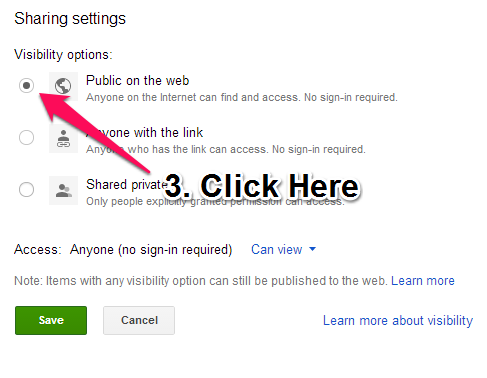
- Create the spreadsheet and share it with anyone with the link. (Chrome)
- In another browser (I used Firefox) I opened the link.
- Sign in with a separate Google Account (I have one for teaching and a personal one)
I also shared it with my master teacher who was able to view and save the document. - Make a copy of the document. Rename it something nice before editing the document as your own.
- Share!
All's Well
Fortunately, we were able to fix the teacher's document before the next period. The next group of students were able to type away on their saved documents the way the teacher wanted.